
Get Blender
Blender is free, open-source 3D software made by the Blender Foundation and a large community of volunteers. People use it to model, animate and render everything from product mockups to feature films. There’s no account to create, no trial and nothing to pay. You download it and it’s yours.
BlenderMCP works inside Blender, so Blender comes first. Any version from 4.2 onward works. Unless you have a reason to want an older one, get the newest release from blender.org. Plan on about ten minutes, most of it waiting for a download of a few hundred megabytes.
Check your computer
Section titled “Check your computer”Blender runs on Windows, macOS and Linux. It uses your graphics hardware to draw the 3D view, so it needs a reasonably modern graphics card or built-in graphics chip. If your computer is more than a few years old, glance at Blender’s requirements page before you download. It lists exactly what’s supported.
On a Mac, the kind of chip matters. Blender 5.0 and later run only on Macs with Apple silicon. Intel Macs can still use Blender 4.5 LTS, which works with BlenderMCP. The macOS tab below shows how to tell which Mac you have.
Install Blender
Section titled “Install Blender”Pick your system. The download page at blender.org/download offers the version for the computer you’re browsing on, so the main button is usually the right one.
-
Go to blender.org/download and download the Windows installer. Its name ends in
.msi.Most PCs need the regular Windows version. A few laptops have an Arm processor instead; if
Settings › System › Aboutshows ARM-based processor next to System type, download the Windows ARM installer. -
Open the file you downloaded and follow the installer. The default choices are fine. Windows asks for permission to install, because the installer needs administrator rights; click Yes.
-
Open Blender from the Start menu: press the Windows key, type
Blender, and pressEnter.
-
Find out which kind of Mac you have. Open the Apple menu and choose About This Mac.
- If you see Chip followed by a name like Apple M1 or Apple M3, you have Apple silicon.
- If you see Processor followed by an Intel name, you have an Intel Mac.
-
Download the right version.
- Apple silicon: go to blender.org/download and download macOS Apple Silicon. It needs macOS 13 (Ventura) or newer.
- Intel: go to the Blender 4.5 LTS page and download macOS Intel. This long-term release gets fixes until July 2027.
Either way, the file’s name ends in
.dmg. -
Double-click the
.dmgfile. A window opens showing Blender and your Applications folder. Drag Blender onto Applications. -
Open Blender from your Applications folder. The first time, macOS asks you to confirm that you want to open an app downloaded from the internet. Confirm, and Blender starts.
-
Once Blender is in Applications, you can eject the Blender disk image in Finder and delete the
.dmg.
-
Go to blender.org/download and download the Linux version. Its name ends in
.tar.xz. It runs on most recent distributions (any with glibc 2.28 or newer). -
Extract it wherever you keep programs, for example a
softwarefolder in your home directory. Use your file manager’s Extract option, or a terminal:Terminal window tar -xf blender-*-linux-x64.tar.xzBlender’s manual notes that extracting this archive with 7-Zip isn’t supported, so stick with
taror your file manager. -
Open the extracted folder and double-click
blender, or run it from a terminal in that folder:Terminal window ./blender
Prefer a package manager? The Snap is published by the Blender Foundation and updates itself:
sudo snap install blender --classicYour distribution may also package Blender, but Blender’s manual warns those packages can lag behind the latest release or leave out features such as GPU rendering. Make sure you end up with 4.2 or newer.
Other ways to get it
Section titled “Other ways to get it”The download from blender.org is the most direct route, but Blender is also free through these.
| Where | Systems | How |
| --- | --- | --- |
| Microsoft Store | Windows | Search for Blender in the Store app and install it. |
| winget | Windows | winget install BlenderFoundation.Blender |
| Steam | Windows, macOS, Linux | Search for Blender in the Steam client and click Install. Needs a Steam account. |
| Homebrew | macOS | brew install --cask blender (on an Intel Mac this installs Blender 4.5 LTS automatically) |
| Snap | Linux | sudo snap install blender --classic |
| Flathub | Linux | flatpak install flathub org.blender.Blender |
First launch
Section titled “First launch”The first time Blender opens, a splash screen in the middle of the window asks a few setup questions: language, a light or dark theme, a keymap, and which mouse button selects things. The defaults are fine, and these docs assume them. Click Save New Preferences. You can change any of it later in Edit › Preferences.
The splash screen then offers to start a new file or open a recent one. Click anywhere outside it, or press Esc, to close it.
Behind it is Blender’s startup scene: a gray cube in the middle, a light and a camera, sitting on a grid floor. The big area in the middle is the 3D Viewport, where your scene appears. The panels on the right list what’s in the scene and its settings, and the timeline runs along the bottom.
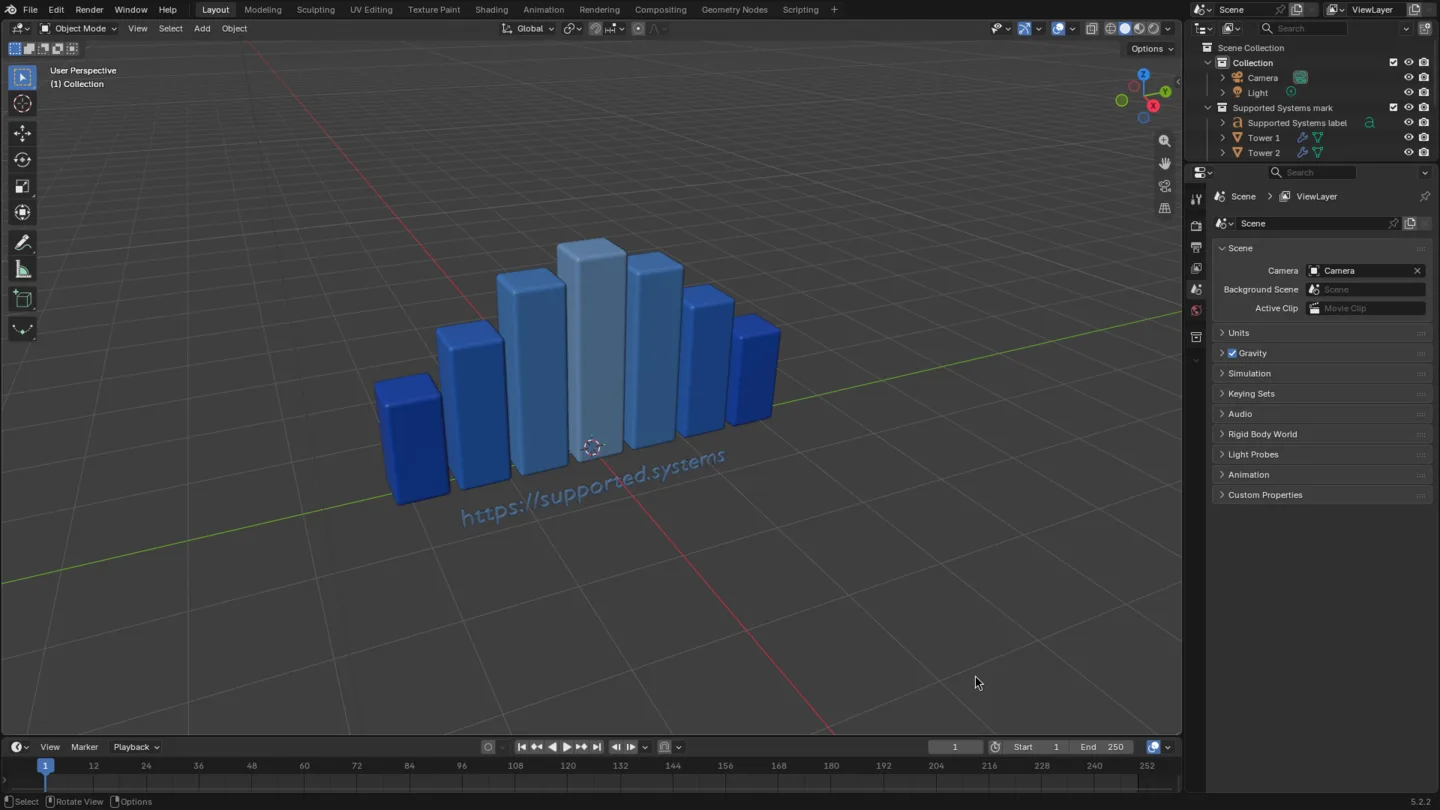
Your window shows the gray cube rather than these bars, but the layout is the same. You don’t need to learn any of it yet. You’ll ask for changes in plain words, and Claude makes them here while you watch.
Next: connect Claude
Section titled “Next: connect Claude”Blender is open, so you’re ready for the Quickstart. It adds BlenderMCP to Blender, connects Claude, and has Claude change your scene.

A Supported Systems Joint
BlenderMCP is built and maintained by Supported Systems, a small studio that writes software for people who have to keep it running afterwards.
Visit supported.systems