
Chat inside Blender
The Chat panel sits in the BlenderMCP tab of the 3D Viewport sidebar, below the connection status. Press N to show the sidebar if it’s hidden. Type what you want, for example “put a 2 m cube on the table” or “make the center bar glow orange”, and Claude does it in the scene you have open, using the same tools any MCP client gets. Nothing else needs installing.
Ask for something
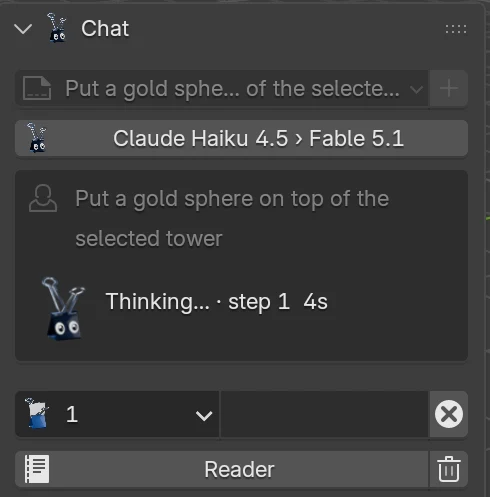
Section titled “Ask for something”Type in the field at the bottom of the panel and press Enter, or click the arrow. The reply streams in while Claude works, and B thinks along until it’s done. To stop a reply partway, click the ⨂ button that replaces the arrow while it runs.
Requests can be about the scene (“what’s in here?”, “how big is the table?”) or changes to it (“add four chairs around the table”, “make it brass”). When a request is ambiguous, for example “the bigger one” when two objects are the same size, Claude asks which one you mean instead of guessing.
A new chat shows a few starter prompts under the hint, such as Make B wave in the B. Clip template or Describe this scene anywhere else. Clicking one fills the message box without sending it, so you can change the wording and press Enter when it reads right. The server supplies them as MCP prompts, and they disappear once the conversation starts.
To try it on B without the template, download his rigged .blend from blender.bet/b, where you can also pose him in your browser.
Clip things to your message
Section titled “Clip things to your message”The binder clip at the start of the input row attaches context to what you send. Click it to choose:
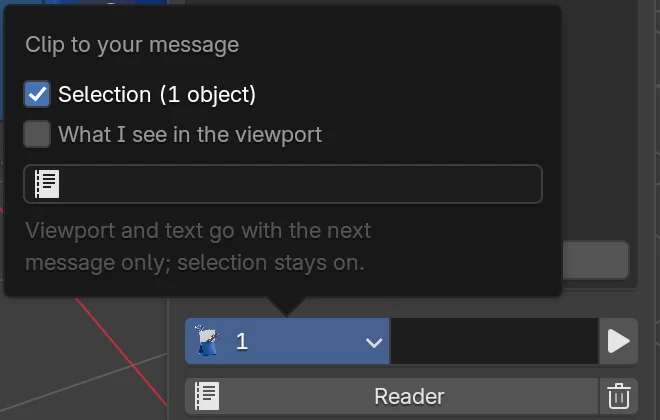
- Selection sends the objects you have selected, so “make these red” means exactly them. It stays on, and the clip shows how many objects go along.
- What I see in the viewport sends a picture of your view with the next message, for questions like “does this look balanced?”.
- A text block sends the text from Blender’s Text Editor, such as notes or a list of measurements, with the next message.
When anything is clipped, the clip grips a sheet of paper and shows the count.
Python asks first
Section titled “Python asks first”Most requests use dedicated tools. When Claude needs to run Python in your Blender, the panel shows the code and waits for Allow or Deny. Deleting objects asks the same way.
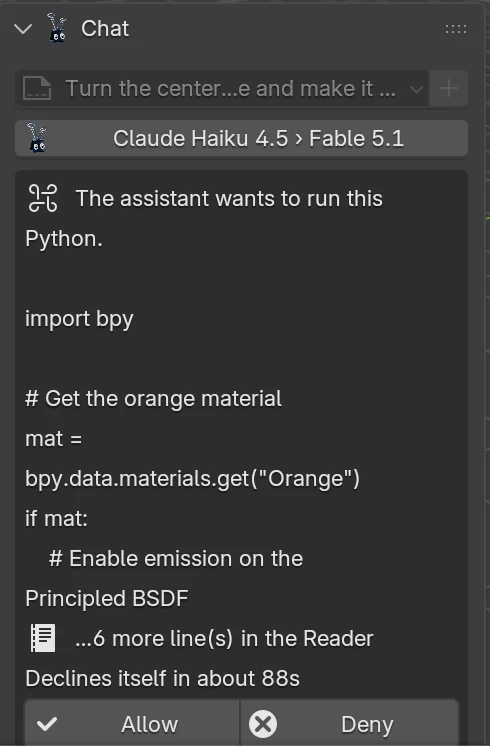
Deny tells Claude you declined, and it carries on without that step. If you don’t answer within two minutes, the request declines itself. Long code shows its first lines here and the rest in the Reader. Blender’s status bar also shows when an approval is waiting, so you can spot it from another workspace.
Undo a reply
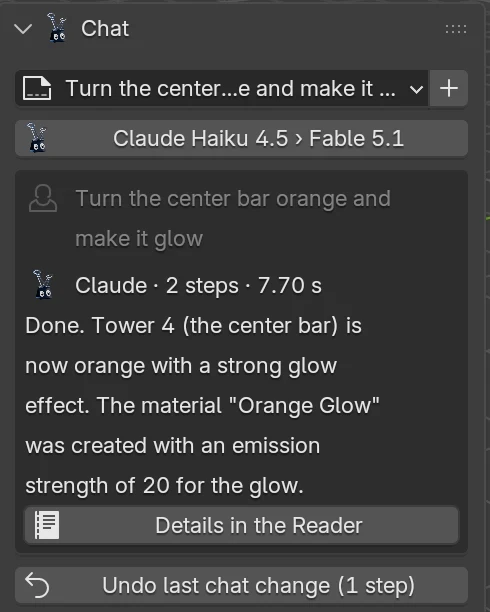
Section titled “Undo a reply”Every change Claude makes is its own Ctrl+Z step. Undo last chat change takes back everything from the latest reply at once, however many steps it took. If the scene changed after that reply, or the reply took more steps than Blender’s undo history keeps, the button turns off and the panel suggests Ctrl+Z instead.
Read the whole conversation
Section titled “Read the whole conversation”The sidebar shows the latest exchange. Reader opens the full conversation beside the viewport: your messages, what you clipped, each tool Claude ran and how long it took, and every reply in full. Text in the Reader can be searched with Ctrl+F and copied, and Close Reader puts the viewport back.
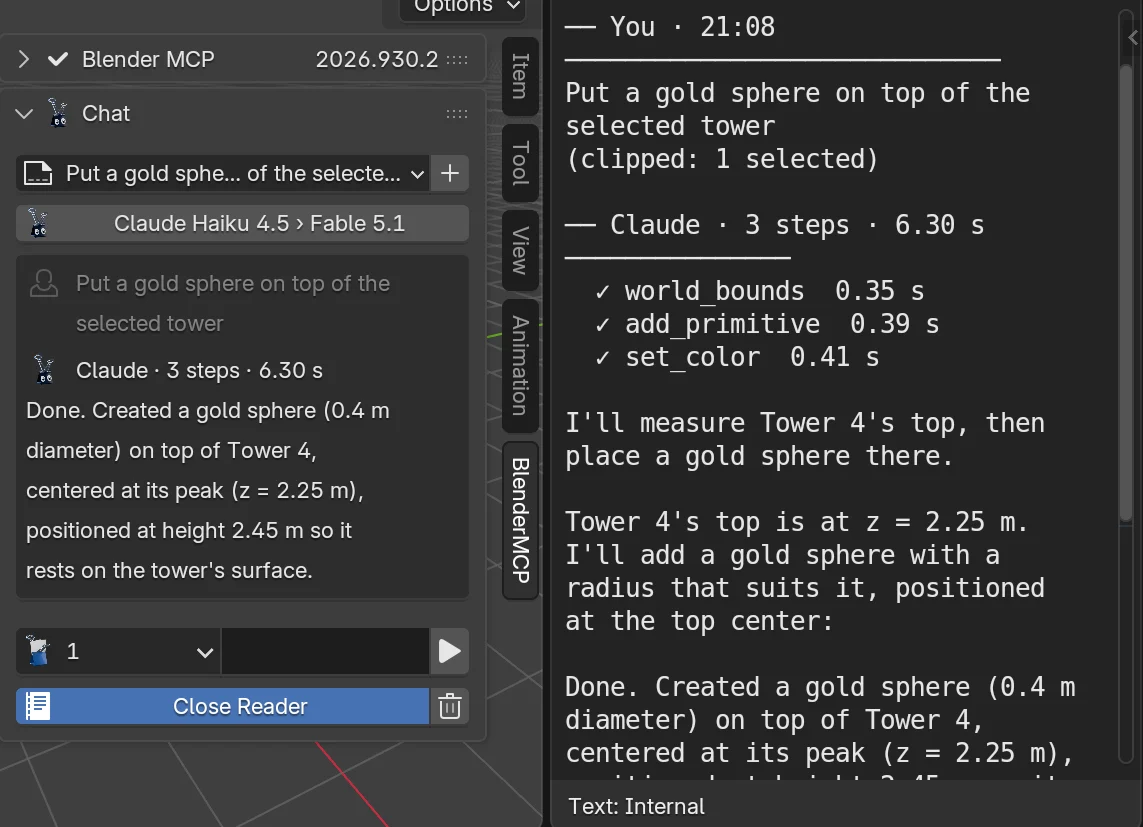
The conversation is kept in a text block named BlenderMCP Chat, which is saved with your .blend.
Keep separate conversations
Section titled “Keep separate conversations”The picker at the top of the panel lists your saved chats; pick one to continue it. + starts a new conversation and keeps the current one in the picker. The trash button deletes the conversation on screen from your saved chats.
Choose the model
Section titled “Choose the model”The button under the chat picker names the model answering, for example Claude Haiku 4.5 › Fable 5.1. Click it to open the settings in Edit › Preferences › Add-ons › Blender MCP, under Chat backend:
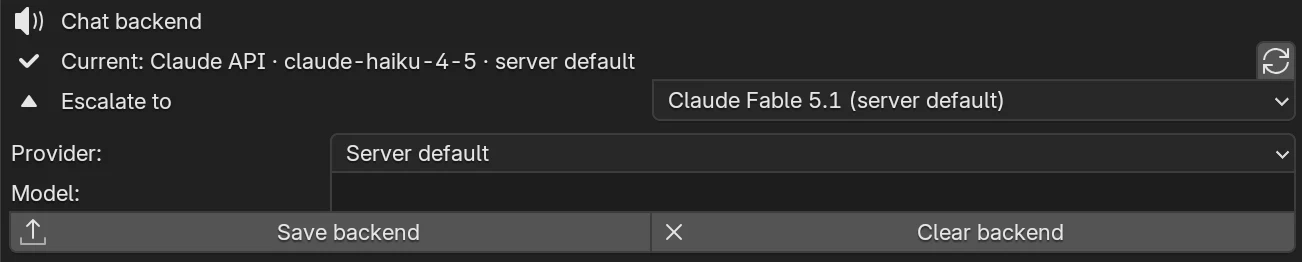
Current says which model your account uses right now. On mcp.blender.bet the server default is Claude Haiku 4.5, which can consult a stronger model when a request needs more thought. Escalate to picks that model: Claude Fable 5.1 unless you choose another, or Off.
To use something else, set Provider and press Save backend:
| Provider | What you need | Notes | |---|---|---| | Server default | Nothing | Whatever this server is set up to use. | | Claude API | Your Anthropic API key | The server’s default Claude model (Claude Haiku 4.5 on mcp.blender.bet) unless you name another in Model. | | OpenAI-compatible | A base URL, a model name, and a key if the endpoint needs one | Ollama, LiteLLM, vLLM, or a hosted OpenAI-style API. |
Your key goes to the server once and the field clears; it is stored there encrypted and never saved in Blender’s preferences or your .blend. Clear backend forgets your key and goes back to the server default. For a step-by-step guide to getting and adding a Claude key, see Use your own Claude API key.
Give it more tools
Section titled “Give it more tools”Out of the box, Claude can inspect the scene, build and place objects, set colors and materials (including glow), frame the view, look at the viewport, render quick views, and check meshes. To add more, such as reading a PDF spec sheet or a DXF floor plan, see Add your own tools.
Where the conversation runs
Section titled “Where the conversation runs”The add-on sends each message to the BlenderMCP server over the connection it already has. The server asks the model, runs the tools it picks against your Blender, and streams progress back. It can only reach Blenders signed in to your account.
Building your own client for this? The message format, progress events and approvals are in Chat protocol.

A Supported Systems Joint
BlenderMCP is built and maintained by Supported Systems, a small studio that writes software for people who have to keep it running afterwards.
Visit supported.systems