
Install and update the add-on
BlenderMCP installs from its own extension repository, so Blender downloads the right build for your computer and tells you when a new version is out. It needs Blender 4.2 or newer. On an older Blender, upgrade Blender first; 4.2 LTS and every release since work.
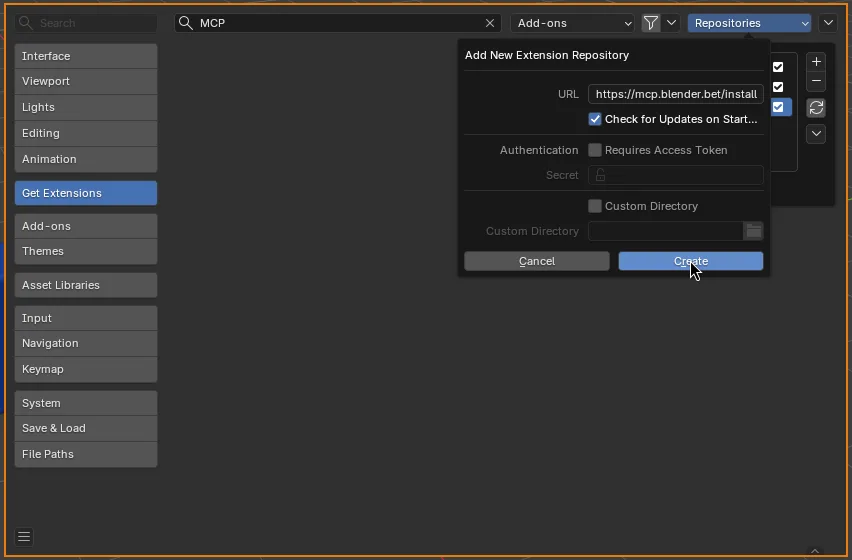
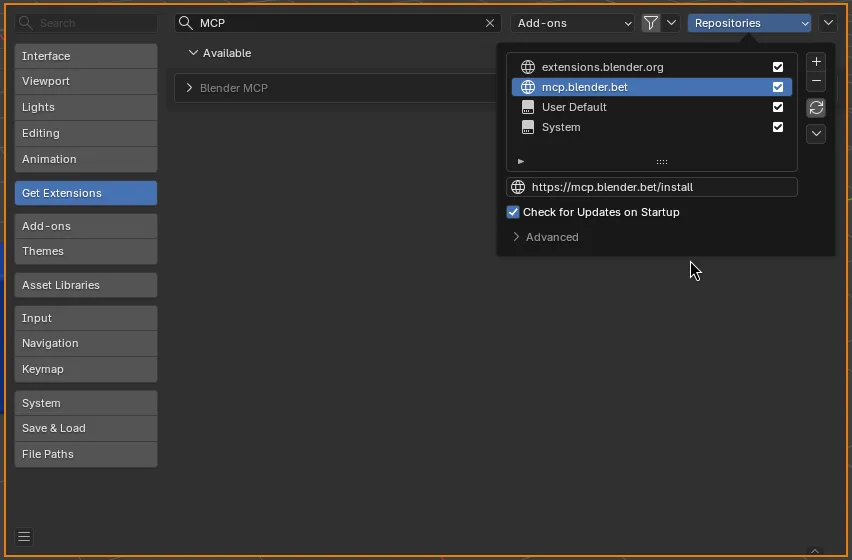
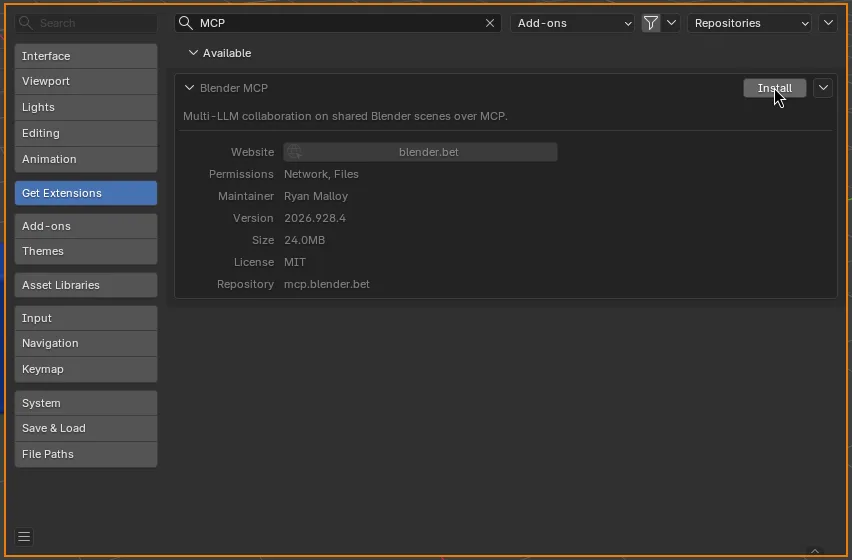
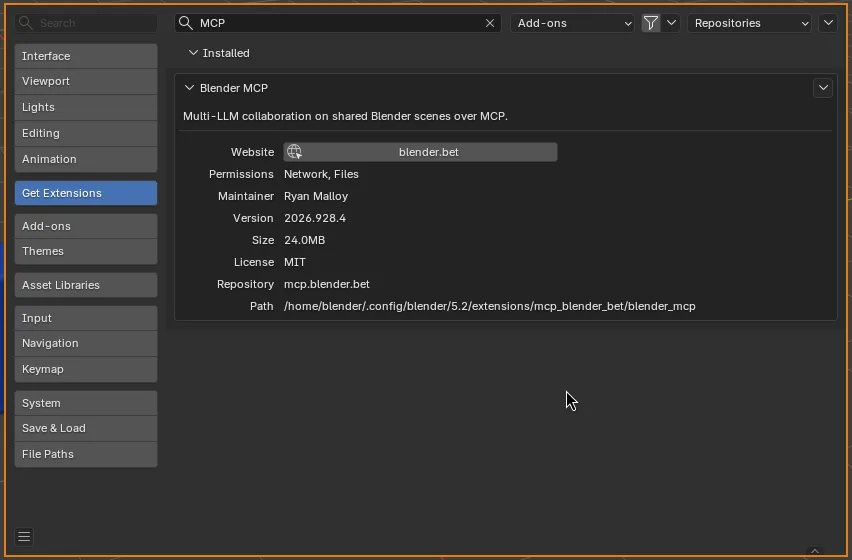
Install from the repository
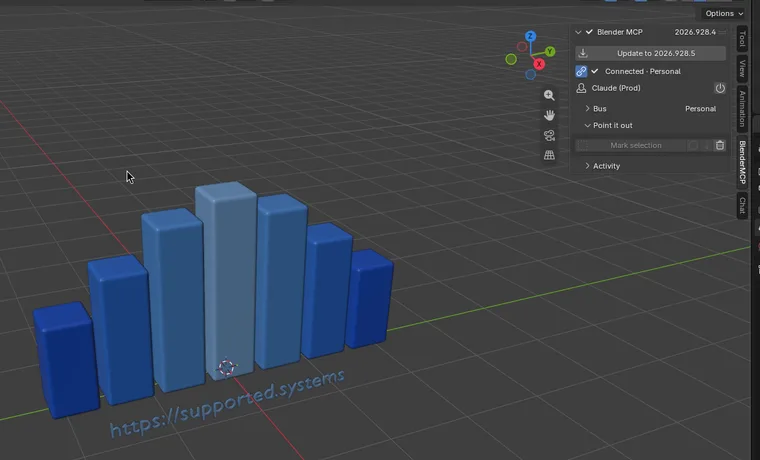
Section titled “Install from the repository”You’re done when the BlenderMCP panel reads Connected · Personal (step 11).
Takes about two minutes in Blender 4.2 or newer. Add this repository once, and Blender keeps the add-on up to date from then on.
https://mcp.blender.bet/install 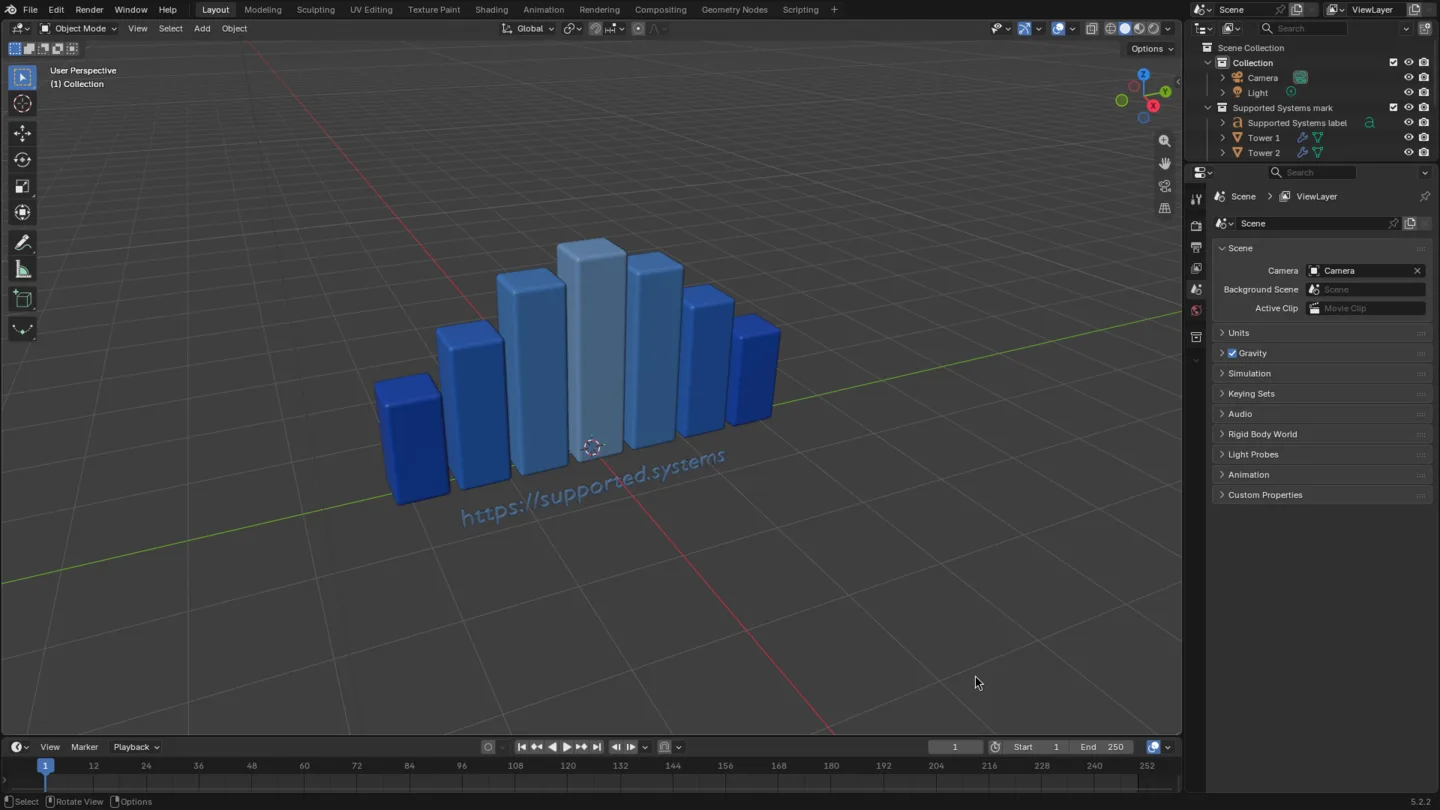
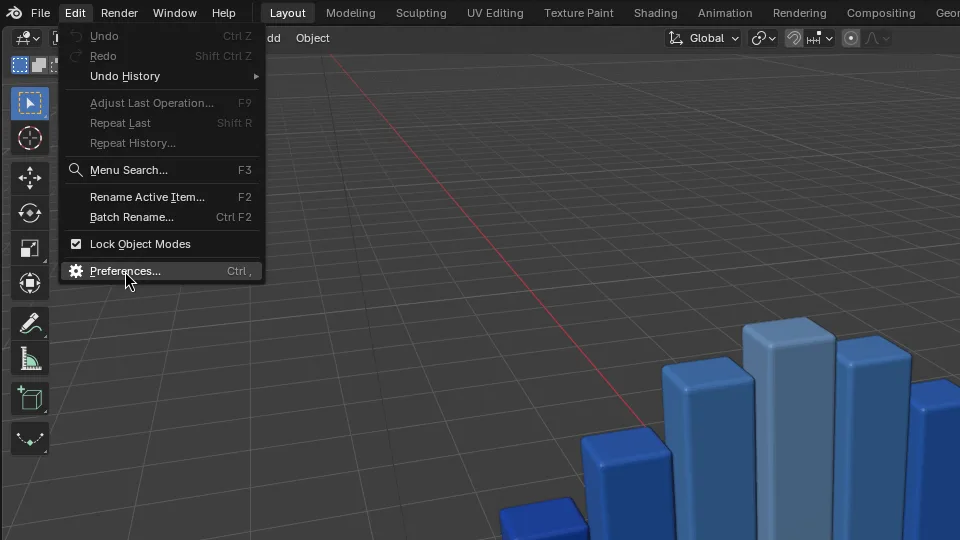
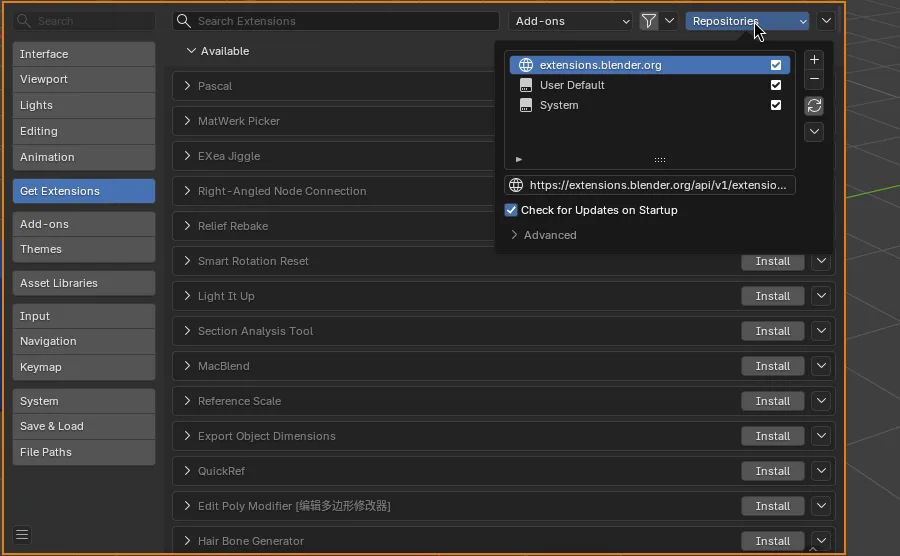
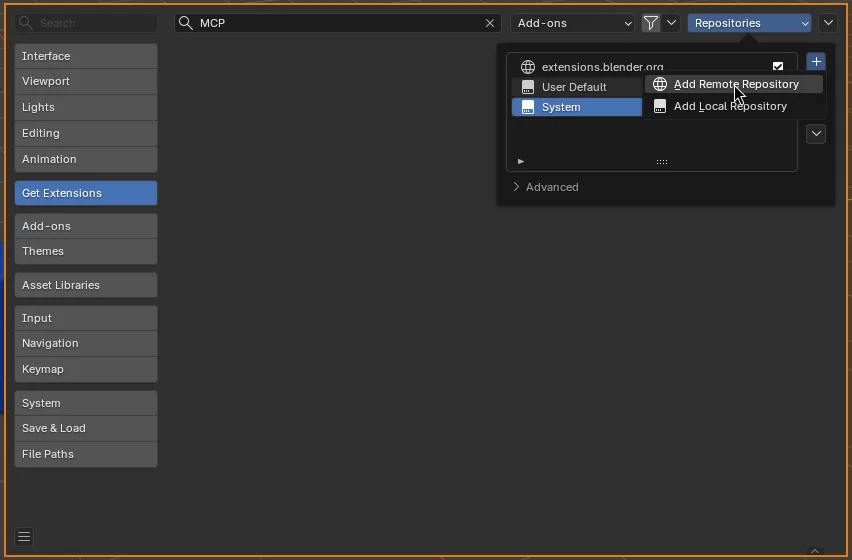
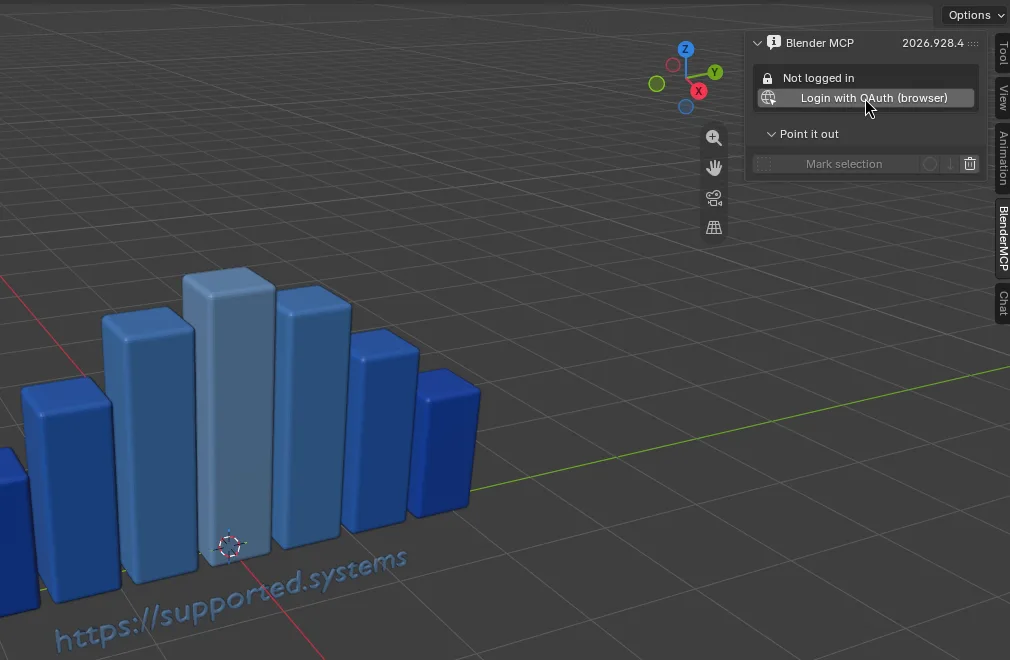
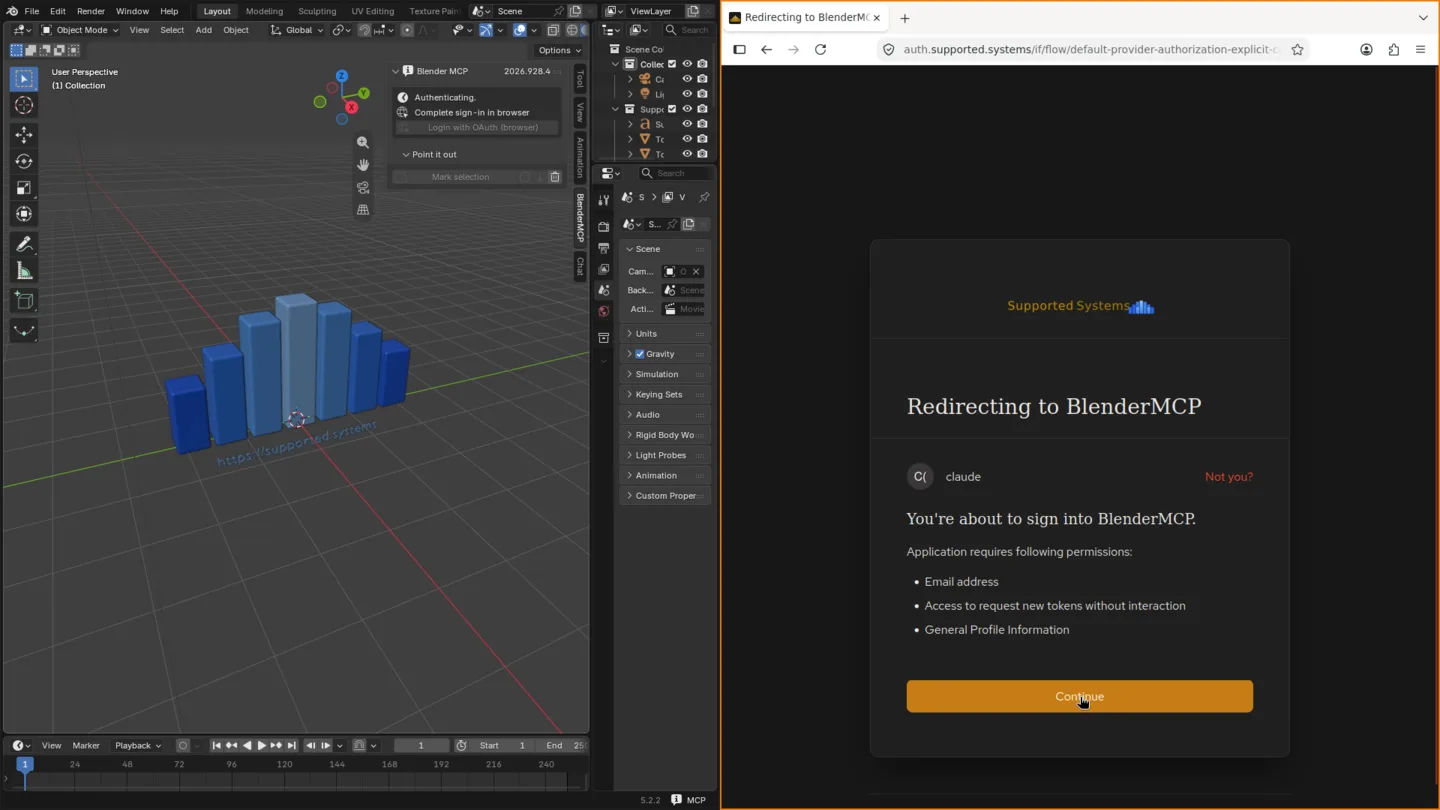
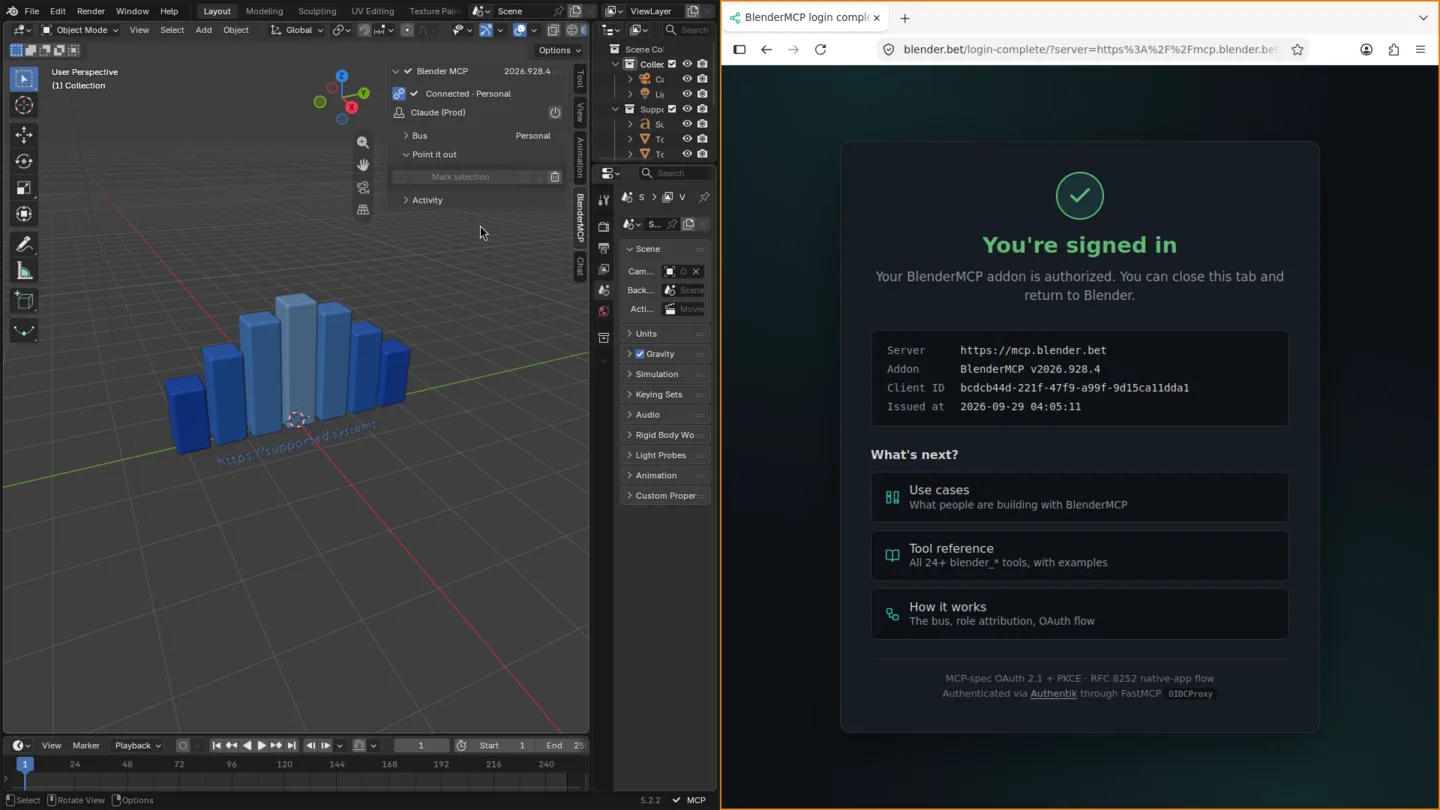
What to do next
Section titled “What to do next”- Chat from the sidebar. The Chat panel sits in the same BlenderMCP tab, below the connection status. Type a request and Claude works on the scene you have open. See Chat inside Blender.
- Connect another MCP client. Claude Desktop, Claude Code or any MCP client can use the Blender you just connected. The Quickstart walks through the first one.
Updating
Section titled “Updating”When a new version is published, an Update to button naming it appears at the top of the BlenderMCP panel. Click it and the add-on downloads the build for your platform, showing a progress bar with a Cancel button in the panel and in Blender’s status bar. Once the download matches the repository’s checksum, Blender installs it in about a second, reloads the add-on, and it reconnects on its own from your saved login. The status bar says Updated to the new version, and no restart is needed. If the repository’s cache is turned off or the download fails, Blender’s own installer downloads it instead.
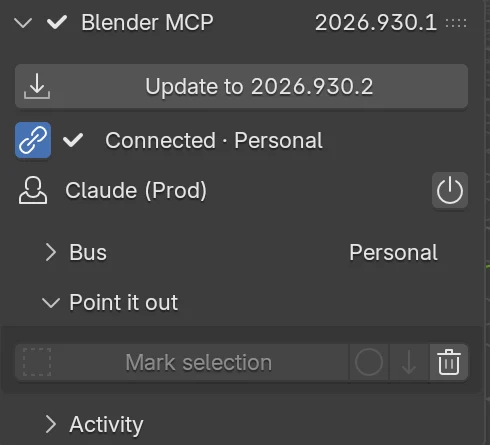
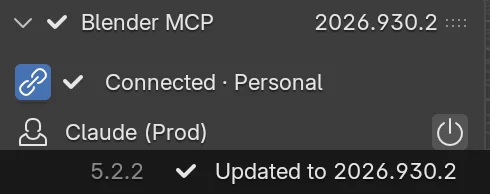
The same offer appears in Preferences → Add-ons → Blender MCP as a box reading, for example, Addon update available: 2026.930.1 → 2026.930.2, with an Update now button.
You can also update the usual way: Preferences → Get Extensions → Check for Updates, then Update beside Blender MCP.
The one-click button needs online access turned on in Blender (it offers to turn it on) and works from 2026.926.7 onward. Versions 2026.926.0 to 2026.926.6 had an Update now button that could crash Blender, so the server no longer offers them the update; update those through Get Extensions instead.
Moving from an older file-based install
Section titled “Moving from an older file-based install”Early versions of BlenderMCP installed as a single file through Preferences → Add-ons → Install. If yours did, the panel offers Get and the version number instead of Update to, and it opens this page, because installing from the repository on top would leave two copies side by side. Move over once:
-
Open
Edit → Preferences → Add-ons, find Blender MCP, expand it, and clickRemove. -
Restart Blender.
-
Follow Install from the repository above, including the login. The old install kept its login in its own preferences, so you sign in once more.
From then on, updates arrive through the Update to button.
Troubleshooting
Section titled “Troubleshooting”The panel says BlenderMCP’s packages were removed
Section titled “The panel says BlenderMCP’s packages were removed”A red box at the top of the panel reads BlenderMCP’s packages were removed from disk while Blender was running. Save your work and restart Blender to restore them., and the status bar shows MCP: restart Blender.
Blender keeps the Python packages that extensions bundle in one shared folder. Something cleared that folder while this Blender was open, usually another program or another Blender process (for example a second Blender installing, updating or removing an extension). Everything already loaded keeps working for a while, but the add-on can no longer open new secure connections, because the certificate file those need was in that folder too. That is why reconnecting and Login both stop working at the same moment.
Save your work and restart Blender. On startup Blender reinstalls the packages and the add-on reconnects from your saved login. Until then the add-on stops retrying in the background instead of failing every few seconds, and the Login button explains the problem rather than opening a browser that could not finish. The system console names the missing file, which helps if you want to find out what removed it.
Login shows a red message under the button
Section titled “Login shows a red message under the button”When a login doesn’t finish, the reason appears under the Login button in plain words, for example that it timed out waiting for the browser, was cancelled in the browser, or couldn’t reach the server. Click Login to try again, or the small X to hide the message. The full error is in the system console.
Reference
Section titled “Reference”- Quickstart: your first MCP client, once the add-on is connected
- Chat inside Blender: the sidebar chat, approvals, and choosing a model
- Bus tools: the
register_clientresponse, including the version hint that drives the update banner - Architecture: where the add-on sits between your Blender and the server

A Supported Systems Joint
BlenderMCP is built and maintained by Supported Systems, a small studio that writes software for people who have to keep it running afterwards.
Visit supported.systems