
Use your own Claude API key
The Chat panel starts you on a free trial. When it runs out, or any time before that, you can add your own Claude API key and keep going. A key is a long password that lets BlenderMCP ask Claude on your behalf. You get one from Anthropic, the company that makes Claude, and it takes a few minutes.
With your own key, what you ask for in the Chat panel is billed to your Anthropic account instead of the trial. Anthropic’s pricing page lists what each model costs.
Open the key box
Section titled “Open the key box”In Blender, press N over the 3D Viewport to show the sidebar, open the BlenderMCP tab, and find the Chat panel.
While the trial lasts, a row near the top shows how much is left, for example 96% free left. Click Use my own key next to it and the key box opens below. When the trial is used up, the box opens by itself with the heading Paste your Claude API key to keep chatting.
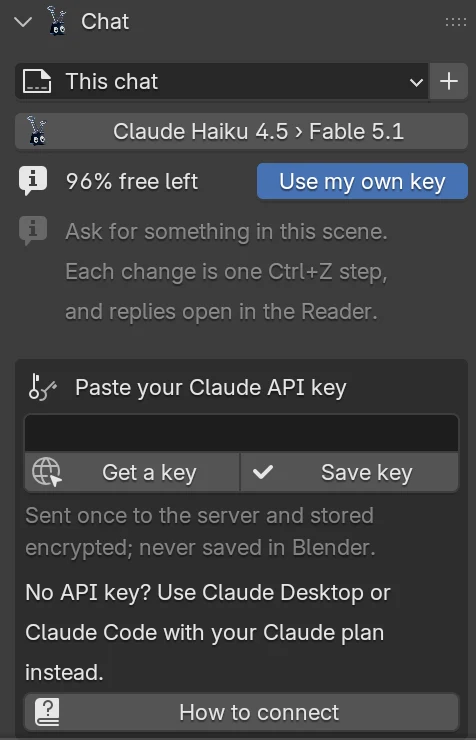
Get a key from the Claude Console
Section titled “Get a key from the Claude Console”The Claude Console is Anthropic’s website for API keys. Keep Blender open while you do this.
-
Click Get a key in the key box. Your browser opens platform.claude.com/settings/keys, the Settings › API keys page.
-
Sign in, or create an account if you don’t have one yet.
-
Click Create key.
-
Give the key a name you’ll recognize later, such as “Blender”. Choose when it should expire, and leave the linked account set to yourself.
-
Copy the key. It starts with
sk-ant-. The Console shows the whole key only this once, so copy it before you close the window. If you lose it, create another one.
Paste it into the Chat panel
Section titled “Paste it into the Chat panel”-
Back in Blender, click the empty field in the key box and paste the key with
Ctrl+V. The field hides what you paste, like any password field.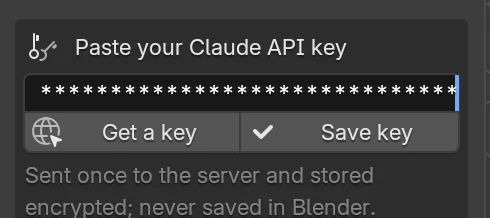
-
Click Save key.
-
The field clears straight away and the box shows Checking key… for a moment. The server asks Anthropic whether the key works. This check is free and uses none of your credit.
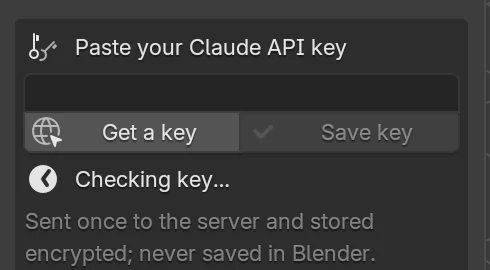
-
When the key passes, the box closes and you can carry on chatting where you left off.
Nothing is stored unless the check passes. If it doesn’t, the box tells you why; see If something goes wrong.
What happens next
Section titled “What happens next”Your requests now go to Claude with your key, and Anthropic bills the account the key belongs to.
The model stays the same as before. On mcp.blender.bet that is Claude Haiku 4.5, which hands harder requests to a stronger model, Claude Fable 5.1 unless you pick another. The button under the chat picker shows both, for example Claude Haiku 4.5 › Fable 5.1.
To change either one, open Edit › Preferences › Add-ons › Blender MCP and look under Chat backend:
- Escalate to picks the stronger model for hard requests, or Off to always use the main one.
- Model names a different main model. Leave it blank to use the server’s pick.
Choose the model explains the rest of that section.
Where your key is kept
Section titled “Where your key is kept”The key is sent once to the BlenderMCP server and stored there encrypted. It is never saved in Blender’s preferences or in your .blend file, so sharing a .blend never shares your key.
Change or remove your key
Section titled “Change or remove your key”Once your key is saved, the trial row in the Chat panel is replaced by a quieter one that reads Using your Claude key, with a Change key button beside it. On a narrow sidebar the label shortens to Your Claude key or Your key.
To use a different key, click Change key. The same key box opens, this time headed Paste a new Claude API key. Paste the new key and click Save key. It goes through the same check with Anthropic, and your current key keeps working until the new one passes; if the check fails, nothing changes and the box says why.
To close the box without changing anything, click Cancel at the bottom of the box, or click Change key again.
To remove your key, click Remove key at the bottom of the box. The box asks Remove your key from the server? before anything happens. Click Remove to go ahead, or Keep to back out. Chat then goes back to the server default. On mcp.blender.bet that means the free trial, so once the trial is used up, chat stops working until you add a key again, and the key box opens by itself to ask for one.
In Preferences instead
Section titled “In Preferences instead”The same changes can be made in Edit › Preferences › Add-ons › Blender MCP, in the Chat backend section.
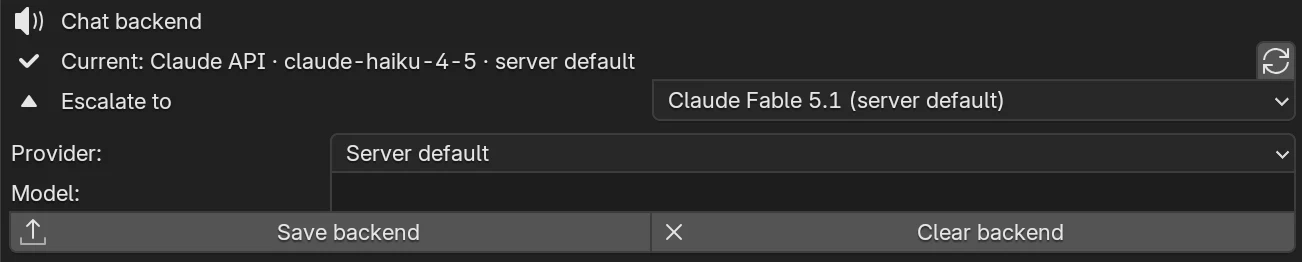
To use a different key there, set Provider to Claude API, paste the new key into the API key field that appears, and click Save backend. The new key is checked with Anthropic the same way and replaces the old one once it passes. Leave Model blank to keep the server’s pick.
To remove your key there, click Clear backend. It does the same as Remove key in the Chat panel, without the confirm step.
If something goes wrong
Section titled “If something goes wrong”“Anthropic didn’t accept that key.” The message appears in red under the buttons.
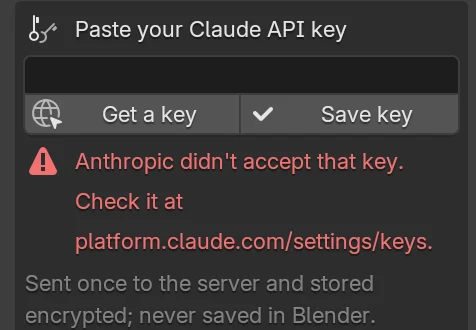
The key was mistyped, cut short, or is no longer active in your Anthropic account. Copy it again from the start, making sure you have the whole thing beginning with sk-ant-, and paste it once more. If you no longer have the full key, create a new one; the Console won’t show an old key again.
“Couldn’t check the key with Anthropic… Try again.” The server couldn’t reach Anthropic at that moment, so it didn’t know whether the key works. Nothing was saved. Wait a minute and click Save key again.
The key box isn’t there. The box only shows while the add-on is connected. Check the top of the BlenderMCP tab says Connected, and see Install the add-on if it doesn’t. During the trial, click Use my own key to open it. If you already saved a key, the box stays closed until you click Change key on the Using your Claude key row; see Change or remove your key. If that row is missing too, open the Chat backend section of Preferences and click the refresh button at the end of the Current line so the add-on asks the server again, or make the change there.
Get a key didn’t open a browser. Go to platform.claude.com/settings/keys yourself.
No API key? Use your Claude plan
Section titled “No API key? Use your Claude plan”Below the key box, How to connect explains the other route. Claude Desktop, claude.ai and Claude Code can all drive your Blender through BlenderMCP on your regular Claude plan, with no API key. Add https://mcp.blender.bet/ as a custom connector in Claude Desktop or claude.ai (it works on every plan, and the Free plan allows one custom connector), or add it to Claude Code. The steps are in Use Claude Code or Claude Desktop too.

A Supported Systems Joint
BlenderMCP is built and maintained by Supported Systems, a small studio that writes software for people who have to keep it running afterwards.
Visit supported.systems